> ## Documentation Index
> Fetch the complete documentation index at: https://docs.tableflow.com/llms.txt
> Use this file to discover all available pages before exploring further.
# Webhooks
> Integrate document extraction with your systems in real-time
TableFlow uses webhooks to push real-time notifications when document extractions are completed or updated. This allows your systems to automatically process extraction results without polling the API.
## How Webhooks Work
Here's how the extraction webhook flow works:
1. A document is uploaded and processed by TableFlow
2. TableFlow extracts data according to your template
3. When processing completes, TableFlow sends a webhook notification to your endpoint
4. Your system receives the webhook with extraction details
5. You can then retrieve the full extraction data using the [API](/api-reference/get-extraction)
Webhooks contain metadata about the extraction. To retrieve the full
extraction data including extracted fields and tables, use the API with the
extraction ID from the webhook.
## Configuring Webhooks
### 1. Create an Endpoint
First, create an endpoint in your application that can receive HTTP POST requests. This endpoint will receive the webhook payloads from TableFlow.
For testing, you can use [Svix Play](https://play.svix.com/) to quickly set up a temporary webhook endpoint.
 ### 2. Add the Endpoint to TableFlow
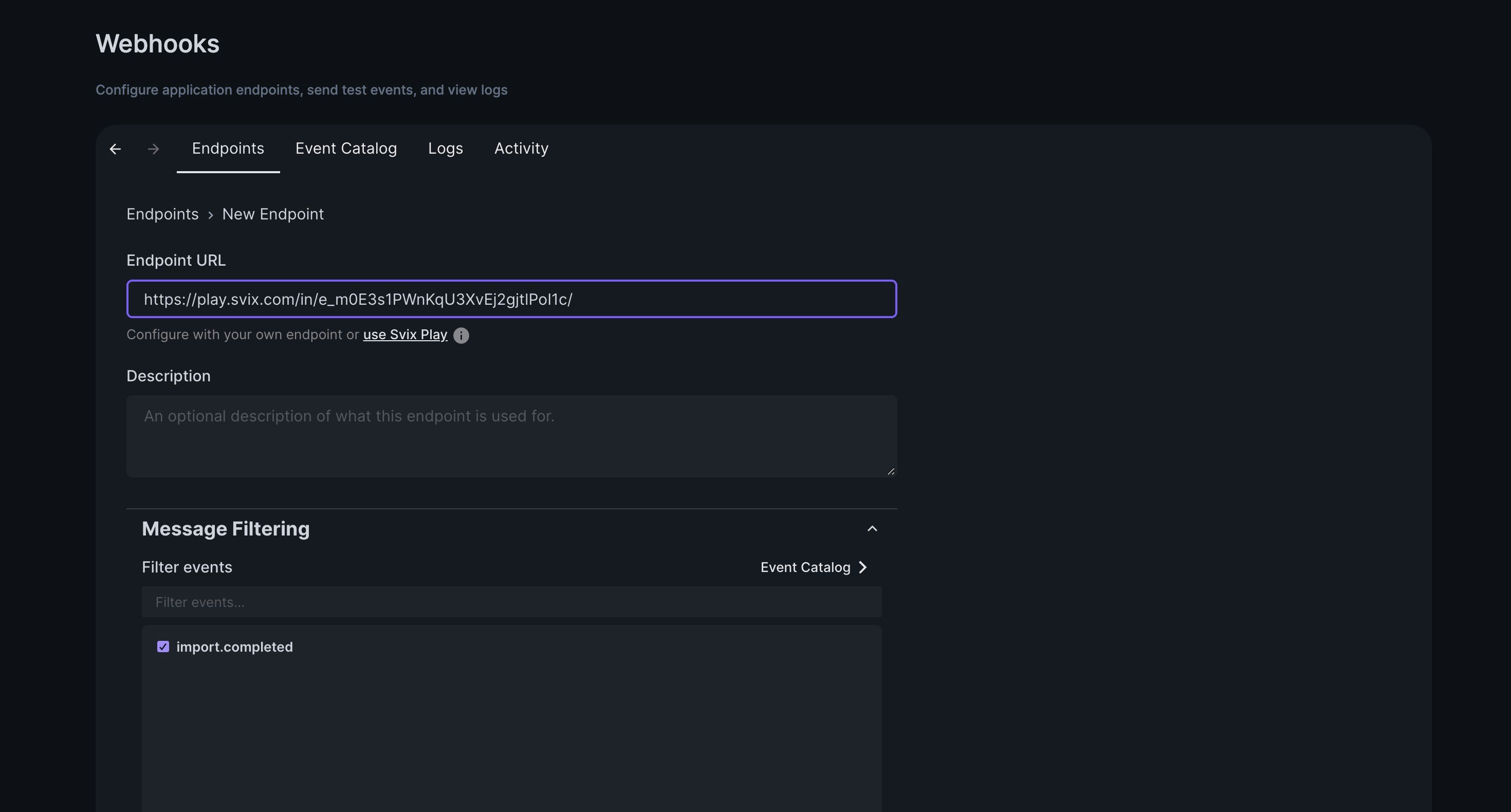
Navigate to your workspace settings in the TableFlow dashboard. Under the "Webhooks" section, add your endpoint URL and select the events you want to receive:
### 2. Add the Endpoint to TableFlow
Navigate to your workspace settings in the TableFlow dashboard. Under the "Webhooks" section, add your endpoint URL and select the events you want to receive:
 ### 3. Send a Test Event
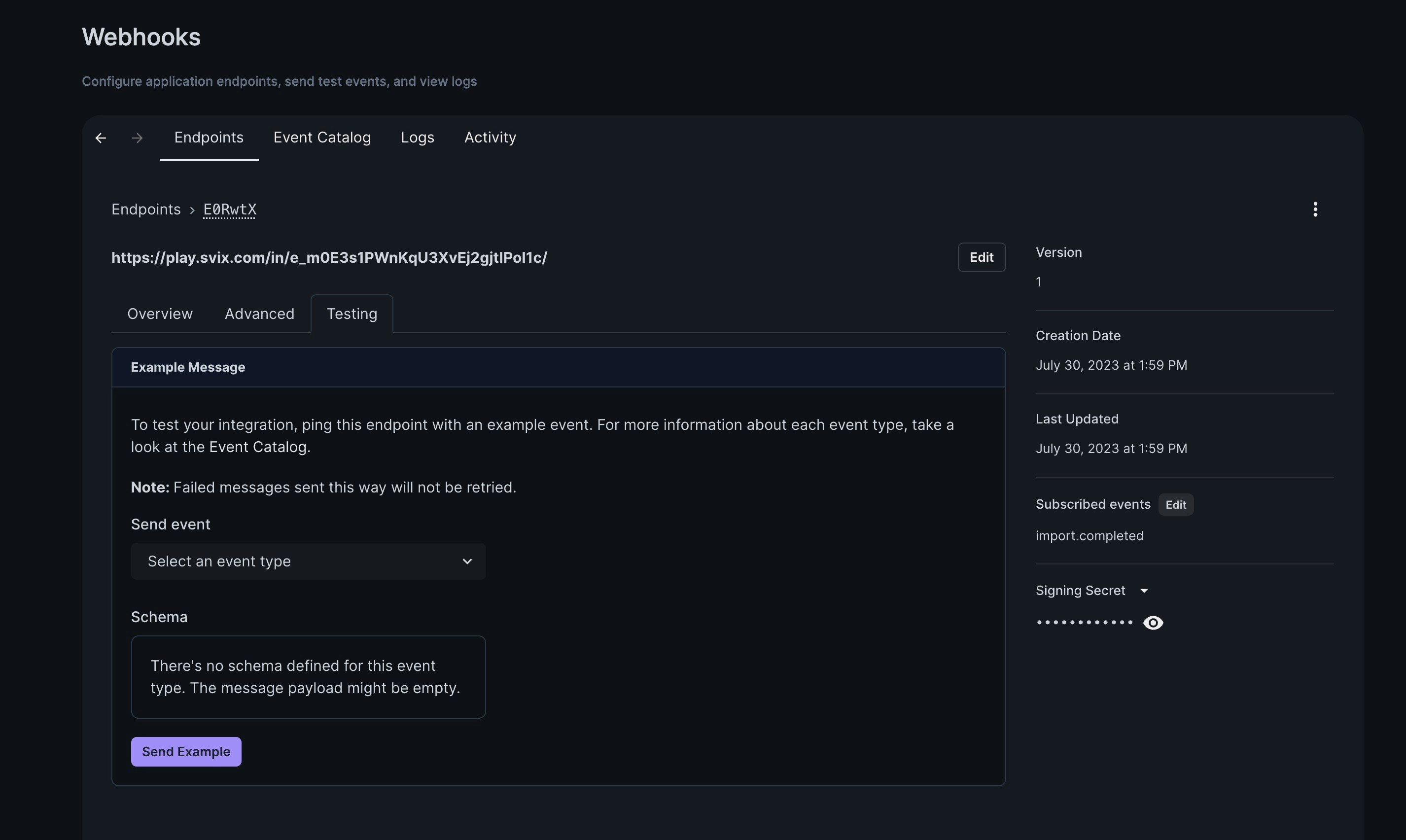
You can send a test event to verify your webhook setup:
### 3. Send a Test Event
You can send a test event to verify your webhook setup:
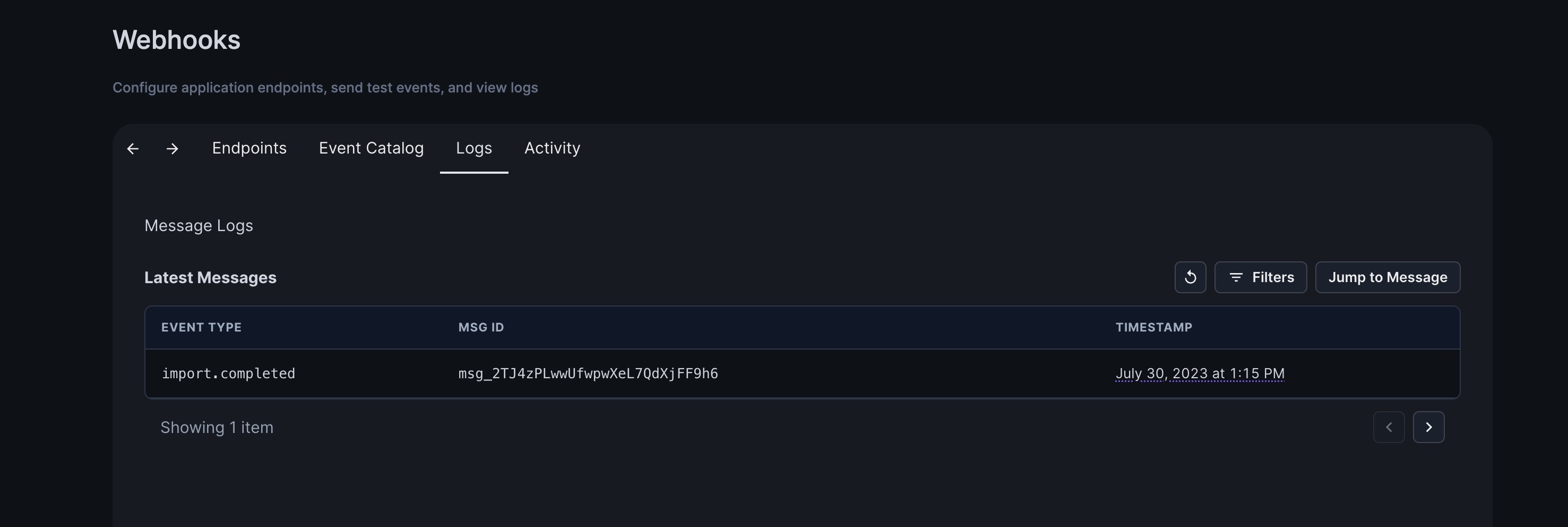
 You'll be able to see the webhook receipt in your logs and in your endpoint system:
 ## Webhook Events
TableFlow supports the following webhook events:
### extraction.completed
Sent when extraction processing has completed successfully.
```json theme={null}
{
"event": "extraction.completed",
"data": {
"extraction_id": "uT2bJNWN75YPU95r",
"template_id": "dk4g1tUg1uHLs8YU",
"template_name": "Invoice Template",
"file_name": "invoice-2023-04-15.pdf",
"file_type": {
"key": "document",
"extension": "pdf",
"mime_type": "application/pdf"
},
"status": "completed",
"created_at": 1682366228,
"updated_at": 1682366240,
"metadata": {
"field_count": 6,
"table_count": 1,
"valid_percentage": 95
}
}
}
```
### extraction.failed
Sent when extraction processing has failed.
```json theme={null}
{
"event": "extraction.failed",
"data": {
"extraction_id": "uT2bJNWN75YPU95r",
"template_id": "dk4g1tUg1uHLs8YU",
"file_name": "invoice-2023-04-15.pdf",
"file_type": {
"key": "document",
"extension": "pdf",
"mime_type": "application/pdf"
},
"status": "failed",
"error": "Unable to process document: corrupt file",
"created_at": 1682366228,
"updated_at": 1682366235
}
}
```
## Webhook Security
TableFlow signs all webhook requests with a signature in the `svix-signature` header. You can use this signature to verify that the webhook is genuinely from TableFlow.
```javascript theme={null}
// Example signature verification in Node.js
const crypto = require("crypto");
function verifyWebhook(payload, headers, secret) {
const signature = headers["svix-signature"];
if (!signature) return false;
const hmac = crypto.createHmac("sha256", secret);
const digest = hmac.update(payload).digest("hex");
return crypto.timingSafeEqual(Buffer.from(signature), Buffer.from(digest));
}
```
## Transforming and Filtering Webhooks
You can transform webhook payloads or filter webhooks based on their content before they're sent to your endpoint.
### Enabling Transformations
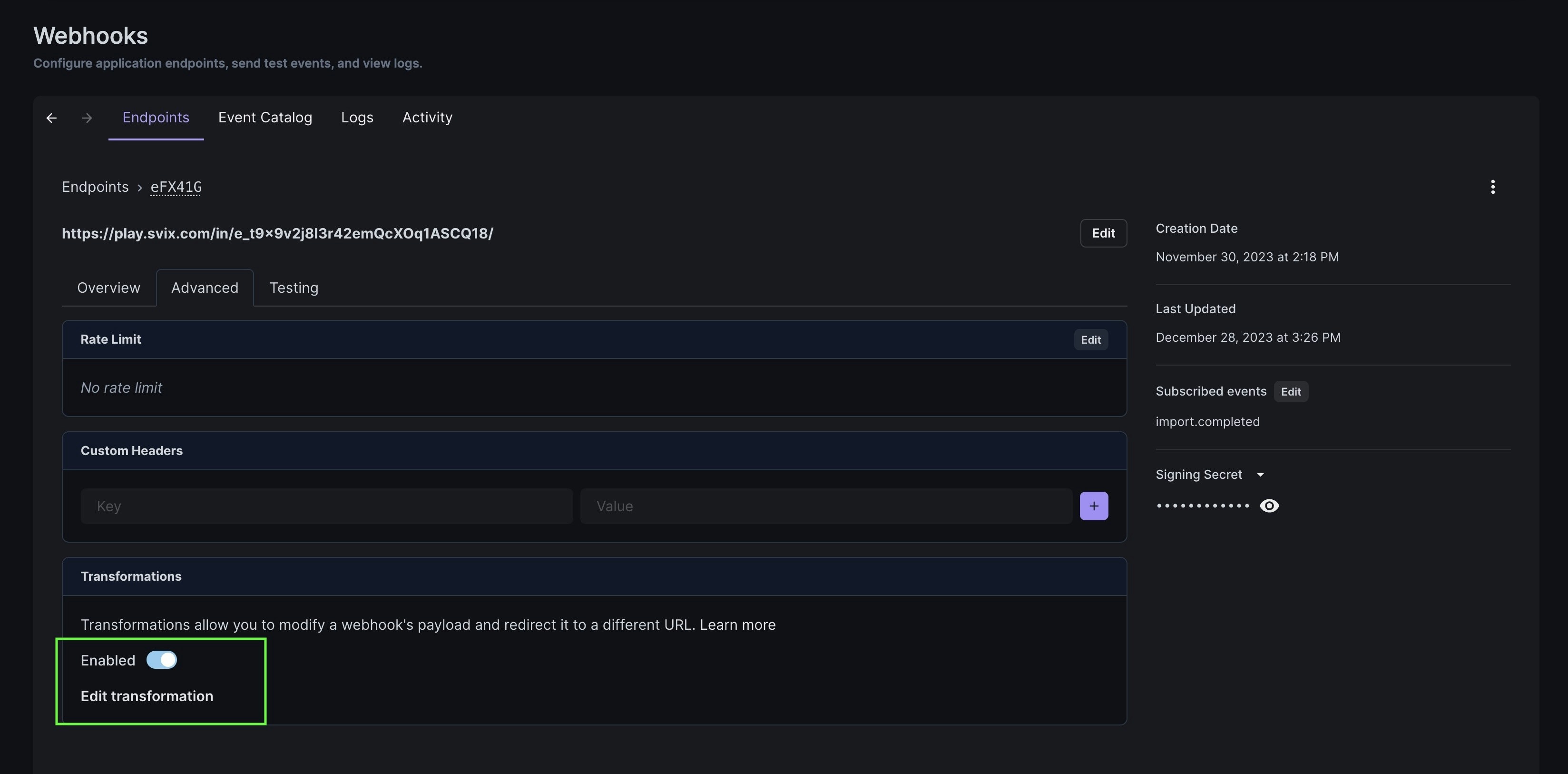
To add a transformation, select "Enable" and "Edit transformation" under the "Advanced" tab of an endpoint:
## Webhook Events
TableFlow supports the following webhook events:
### extraction.completed
Sent when extraction processing has completed successfully.
```json theme={null}
{
"event": "extraction.completed",
"data": {
"extraction_id": "uT2bJNWN75YPU95r",
"template_id": "dk4g1tUg1uHLs8YU",
"template_name": "Invoice Template",
"file_name": "invoice-2023-04-15.pdf",
"file_type": {
"key": "document",
"extension": "pdf",
"mime_type": "application/pdf"
},
"status": "completed",
"created_at": 1682366228,
"updated_at": 1682366240,
"metadata": {
"field_count": 6,
"table_count": 1,
"valid_percentage": 95
}
}
}
```
### extraction.failed
Sent when extraction processing has failed.
```json theme={null}
{
"event": "extraction.failed",
"data": {
"extraction_id": "uT2bJNWN75YPU95r",
"template_id": "dk4g1tUg1uHLs8YU",
"file_name": "invoice-2023-04-15.pdf",
"file_type": {
"key": "document",
"extension": "pdf",
"mime_type": "application/pdf"
},
"status": "failed",
"error": "Unable to process document: corrupt file",
"created_at": 1682366228,
"updated_at": 1682366235
}
}
```
## Webhook Security
TableFlow signs all webhook requests with a signature in the `svix-signature` header. You can use this signature to verify that the webhook is genuinely from TableFlow.
```javascript theme={null}
// Example signature verification in Node.js
const crypto = require("crypto");
function verifyWebhook(payload, headers, secret) {
const signature = headers["svix-signature"];
if (!signature) return false;
const hmac = crypto.createHmac("sha256", secret);
const digest = hmac.update(payload).digest("hex");
return crypto.timingSafeEqual(Buffer.from(signature), Buffer.from(digest));
}
```
## Transforming and Filtering Webhooks
You can transform webhook payloads or filter webhooks based on their content before they're sent to your endpoint.
### Enabling Transformations
To add a transformation, select "Enable" and "Edit transformation" under the "Advanced" tab of an endpoint:
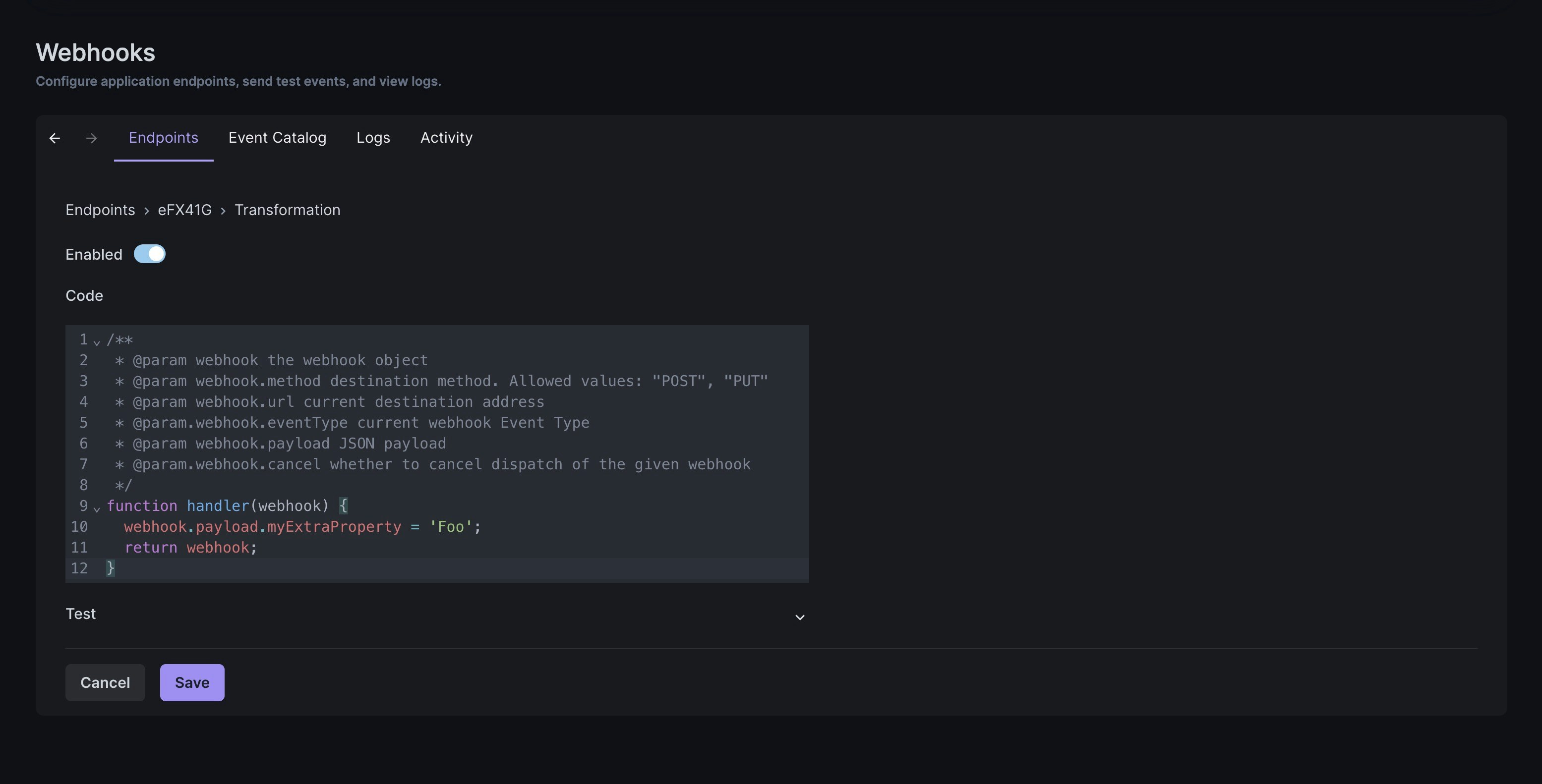
 ### Transform
You can modify the webhook payload to match your system's requirements:
### Transform
You can modify the webhook payload to match your system's requirements:
 ```javascript theme={null}
function handler(webhook) {
// Add custom properties
webhook.payload.customProperty = "Custom Value";
// Transform existing properties
if (webhook.payload.file_type?.key === "document") {
webhook.payload.documentType = "Document";
} else if (webhook.payload.file_type?.key === "spreadsheet") {
webhook.payload.documentType = "Spreadsheet";
}
return webhook;
}
```
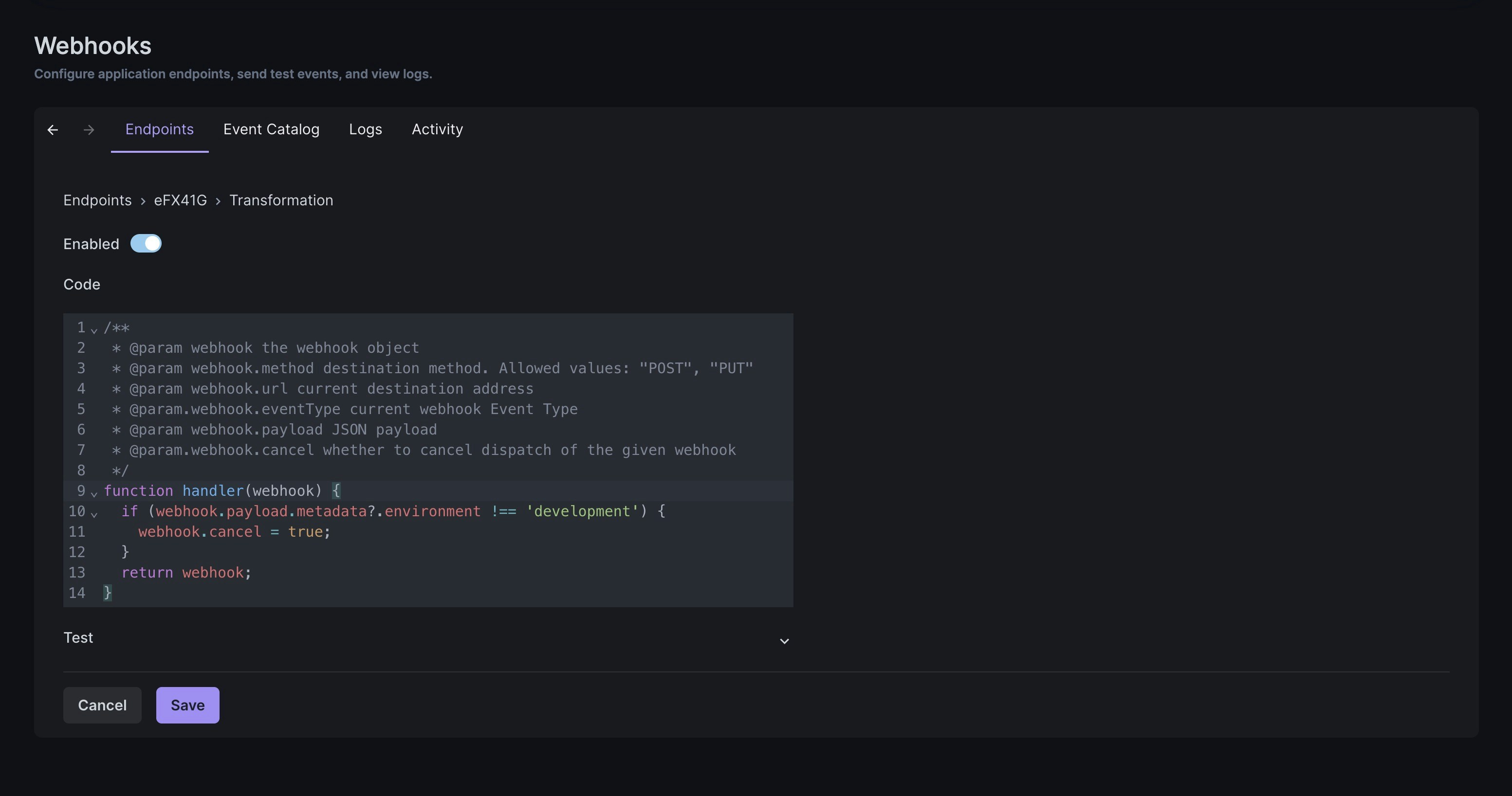
### Filter
You can filter webhooks based on their content to only receive specific notifications:
```javascript theme={null}
function handler(webhook) {
// Add custom properties
webhook.payload.customProperty = "Custom Value";
// Transform existing properties
if (webhook.payload.file_type?.key === "document") {
webhook.payload.documentType = "Document";
} else if (webhook.payload.file_type?.key === "spreadsheet") {
webhook.payload.documentType = "Spreadsheet";
}
return webhook;
}
```
### Filter
You can filter webhooks based on their content to only receive specific notifications:
 ```javascript theme={null}
function handler(webhook) {
// Only receive webhooks for PDF files
if (webhook.payload.file_type?.key !== "document") {
webhook.cancel = true;
}
// Only receive webhooks for specific templates
if (webhook.payload.template_id !== "dk4g1tUg1uHLs8YU") {
webhook.cancel = true;
}
return webhook;
}
```
## Webhook Retries
If your endpoint returns a non-2xx status code, TableFlow will automatically retry the webhook delivery with exponential backoff:
* First retry: 5 minutes after the initial attempt
* Second retry: 30 minutes after the first retry
* Third retry: 2 hours after the second retry
* Fourth retry: 5 hours after the third retry
* Fifth retry: 10 hours after the fourth retry
After five failed attempts, the webhook will be marked as failed and will not be retried again.
## Best Practices
1. **Respond Quickly** - Your webhook endpoint should respond with a 2xx status code as quickly as possible
2. **Process Asynchronously** - Handle the webhook processing in a background job or queue
3. **Verify Signatures** - Always verify webhook signatures to ensure security
4. **Handle Duplicates** - Design your webhook handler to be idempotent to handle potential duplicate deliveries
5. **Monitor Logs** - Regularly check your webhook logs to identify and resolve any delivery issues
## Next Steps
Learn how to set up [Slack notifications](/slack-notifications) to monitor your extractions in real-time.
```javascript theme={null}
function handler(webhook) {
// Only receive webhooks for PDF files
if (webhook.payload.file_type?.key !== "document") {
webhook.cancel = true;
}
// Only receive webhooks for specific templates
if (webhook.payload.template_id !== "dk4g1tUg1uHLs8YU") {
webhook.cancel = true;
}
return webhook;
}
```
## Webhook Retries
If your endpoint returns a non-2xx status code, TableFlow will automatically retry the webhook delivery with exponential backoff:
* First retry: 5 minutes after the initial attempt
* Second retry: 30 minutes after the first retry
* Third retry: 2 hours after the second retry
* Fourth retry: 5 hours after the third retry
* Fifth retry: 10 hours after the fourth retry
After five failed attempts, the webhook will be marked as failed and will not be retried again.
## Best Practices
1. **Respond Quickly** - Your webhook endpoint should respond with a 2xx status code as quickly as possible
2. **Process Asynchronously** - Handle the webhook processing in a background job or queue
3. **Verify Signatures** - Always verify webhook signatures to ensure security
4. **Handle Duplicates** - Design your webhook handler to be idempotent to handle potential duplicate deliveries
5. **Monitor Logs** - Regularly check your webhook logs to identify and resolve any delivery issues
## Next Steps
Learn how to set up [Slack notifications](/slack-notifications) to monitor your extractions in real-time.