> ## Documentation Index
> Fetch the complete documentation index at: https://docs.tableflow.com/llms.txt
> Use this file to discover all available pages before exploring further.
# Slack Notifications
> Receive notifications about extractions in Slack
TableFlow can send notifications to Slack when extractions are completed or fail. This helps your team stay informed about the status of document extractions without constantly checking the dashboard.
## Setting Up Slack Notifications
### 1. Create a Slack App
First, you'll need to create a Slack app and configure incoming webhooks:
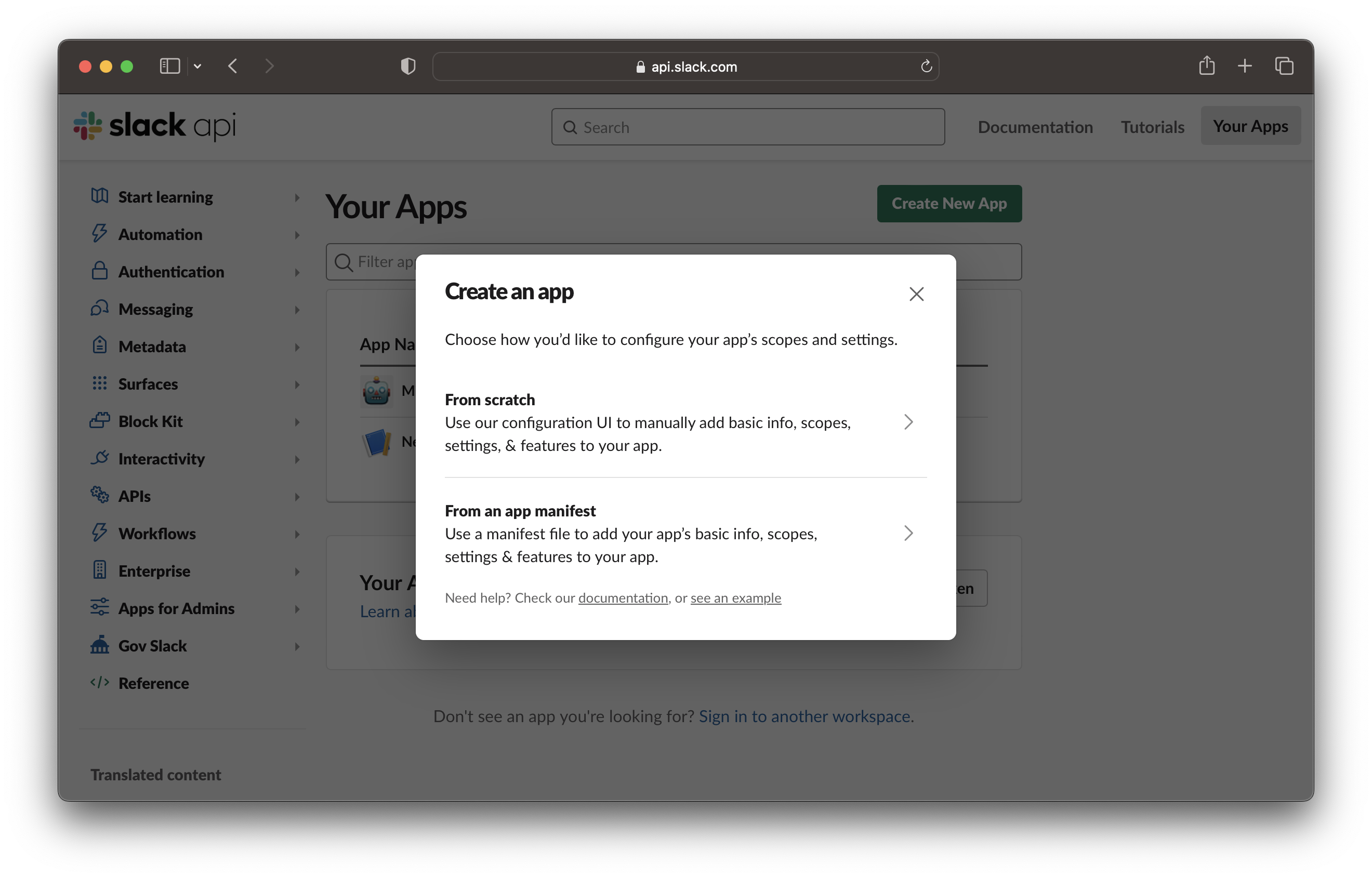
1. Go to the [Slack API Apps page](https://api.slack.com/apps)
2. Click **Create New App**
3. Select **From scratch**
4. Enter a name for your app (e.g., "TableFlow Notifications") and select your workspace
5. Click **Create App**
 ### 2. Configure Incoming Webhooks
Next, you need to enable and configure incoming webhooks:
1. In your Slack app settings, click on **Incoming Webhooks** in the sidebar
2. Toggle the switch to **Activate Incoming Webhooks**
3. Click **Add New Webhook to Workspace**
### 2. Configure Incoming Webhooks
Next, you need to enable and configure incoming webhooks:
1. In your Slack app settings, click on **Incoming Webhooks** in the sidebar
2. Toggle the switch to **Activate Incoming Webhooks**
3. Click **Add New Webhook to Workspace**
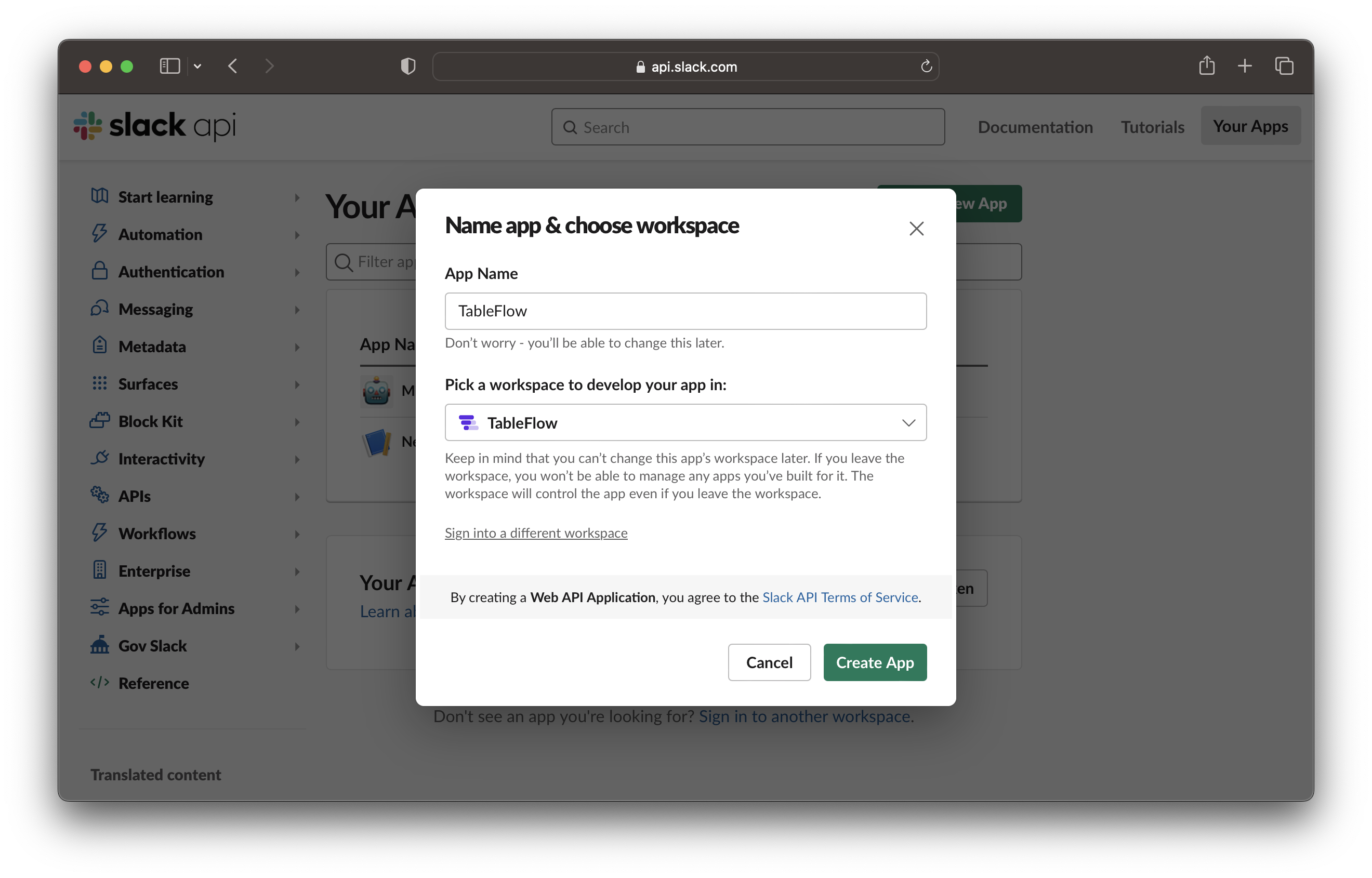 4. Select the channel where you want to receive TableFlow notifications
5. Click **Allow** to give the app permission to post to the channel
4. Select the channel where you want to receive TableFlow notifications
5. Click **Allow** to give the app permission to post to the channel
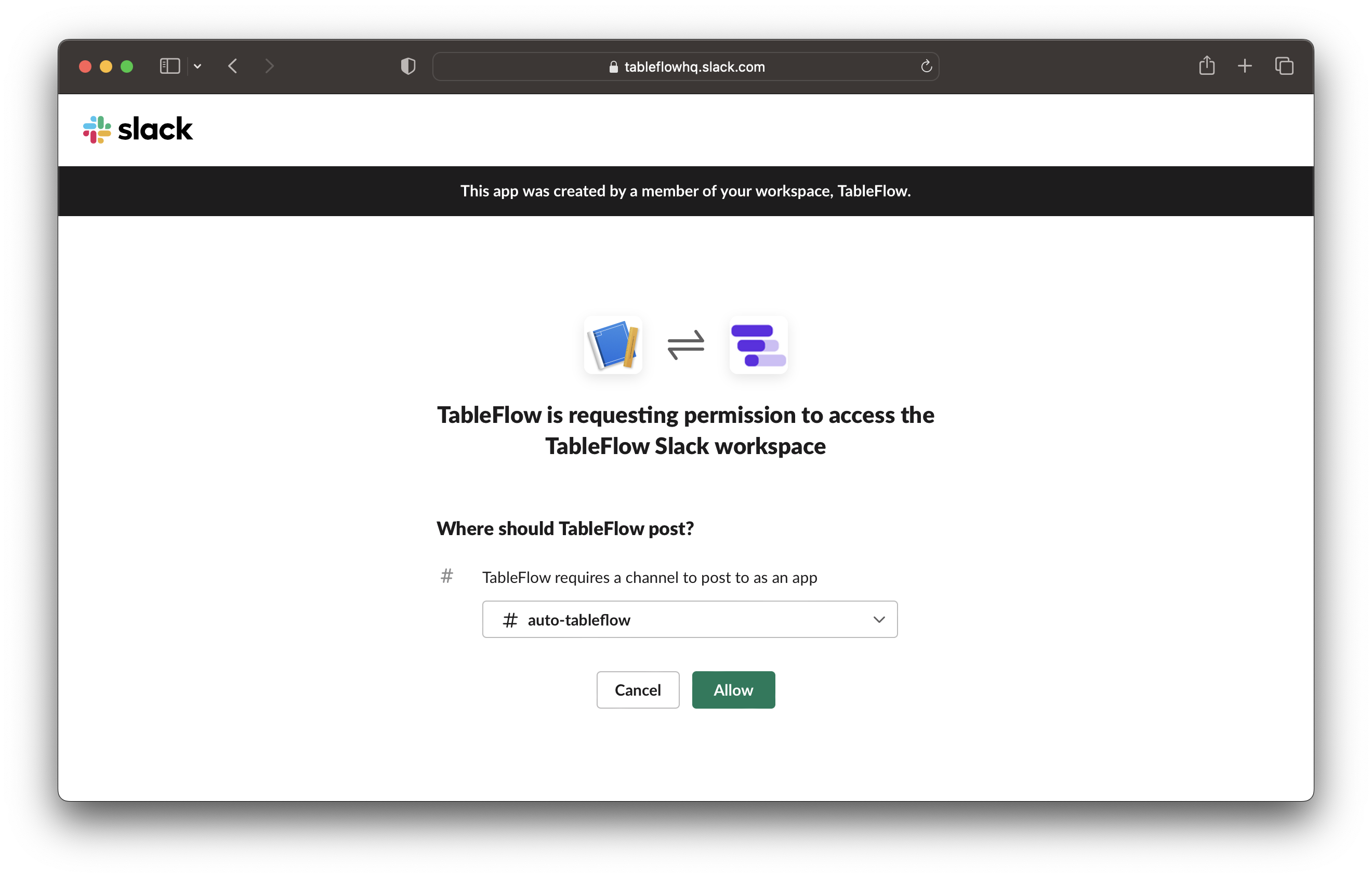 6. Copy the Webhook URL that appears on the page
 ### 3. Configure TableFlow
Now, add the webhook URL to your TableFlow settings:
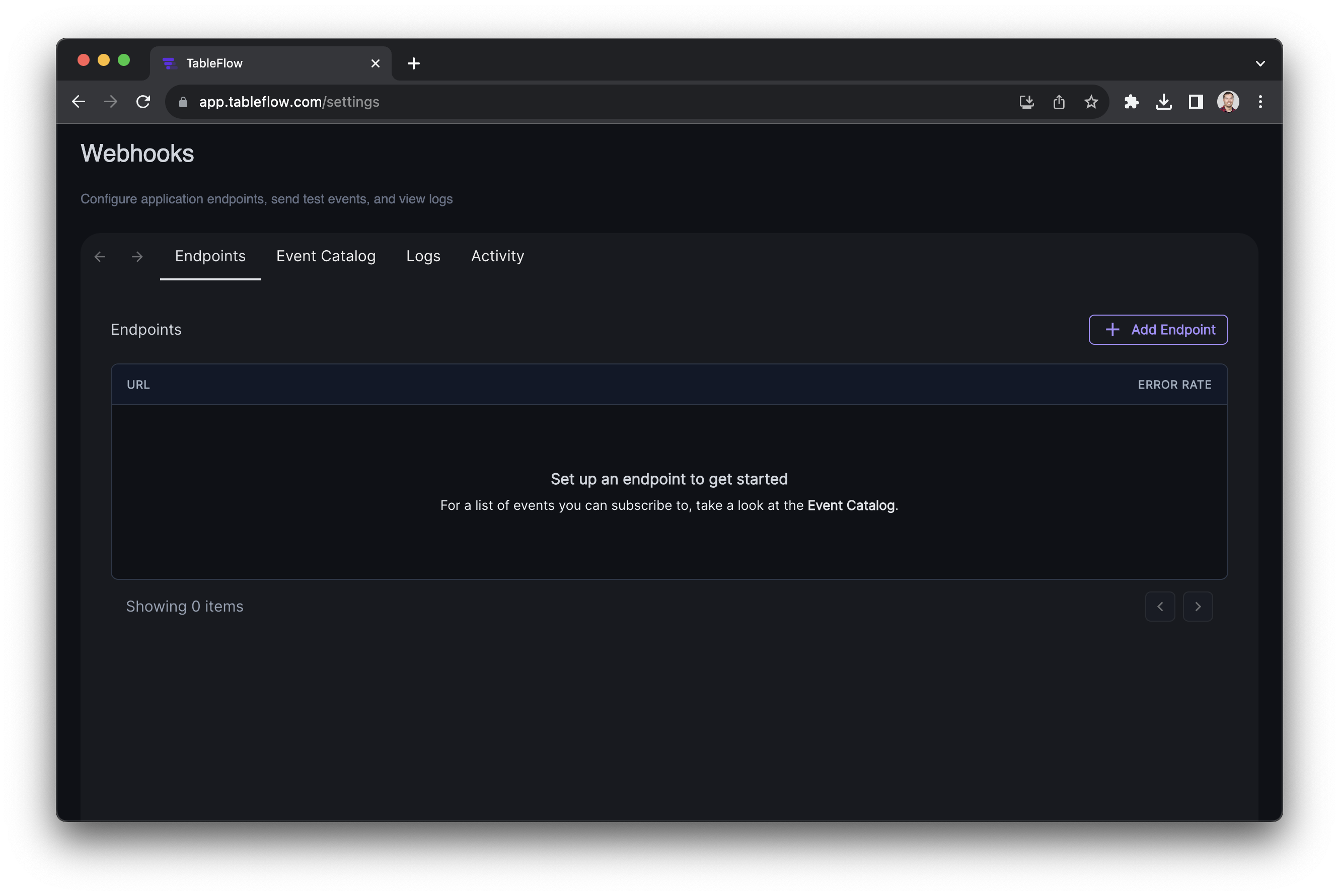
1. Navigate to your workspace settings in TableFlow
2. Select the **Webhooks** tab
3. Click **Add Endpoint**
4. Paste the Slack Webhook URL from the previous step
5. Select which events you want to receive notifications for
6. Click **Create**
### 3. Configure TableFlow
Now, add the webhook URL to your TableFlow settings:
1. Navigate to your workspace settings in TableFlow
2. Select the **Webhooks** tab
3. Click **Add Endpoint**
4. Paste the Slack Webhook URL from the previous step
5. Select which events you want to receive notifications for
6. Click **Create**
 ## Customizing Notifications
To customize the notification format, you'll need to use transformations:
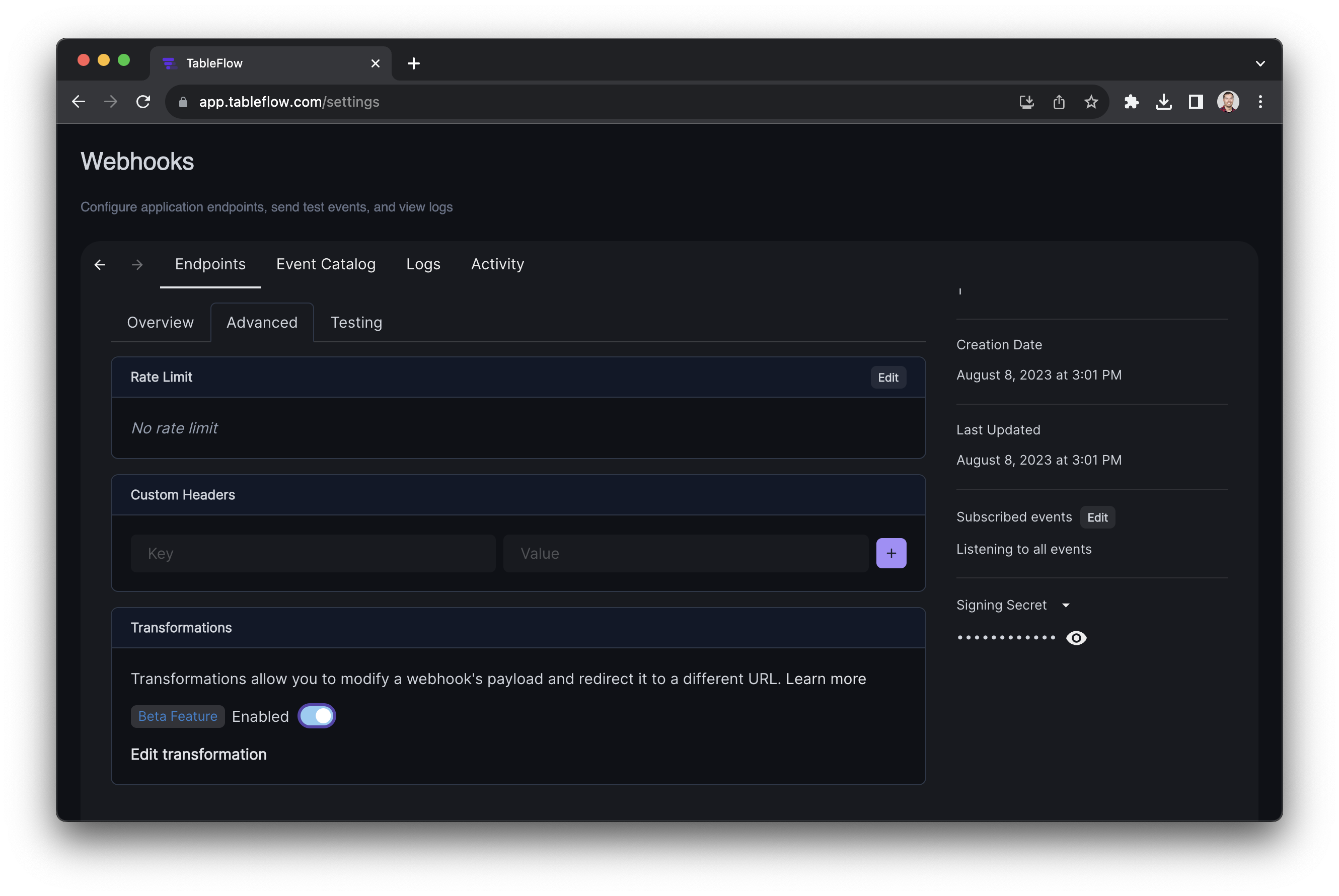
1. Navigate to the **Advanced** section of the endpoint settings
2. Toggle on the **Enabled** switch under Transformations
3. Click **Edit transformation**
## Customizing Notifications
To customize the notification format, you'll need to use transformations:
1. Navigate to the **Advanced** section of the endpoint settings
2. Toggle on the **Enabled** switch under Transformations
3. Click **Edit transformation**
 4. Add your transformation code and click **Save**
Here's an example of a transformation for extraction completion notifications:
```javascript theme={null}
function handler(webhook) {
// Format different messages based on the event type
if (webhook.event === "extraction.completed") {
webhook.payload = {
text: `:white_check_mark: *Extraction Completed*
*File:* ${webhook.payload.file_name}
*Template:* ${webhook.payload.template_name}
*ID:* ${webhook.payload.extraction_id}
*Status:* Completed
*Time:* ${new Date(webhook.payload.updated_at * 1000)
.toISOString()
.replace("T", " ")
.substring(0, 19)} UTC`,
};
} else if (webhook.event === "extraction.failed") {
webhook.payload = {
text: `:x: *Extraction Failed*
*File:* ${webhook.payload.file_name}
*Template:* ${webhook.payload.template_name}
*ID:* ${webhook.payload.extraction_id}
*Status:* Failed
*Error:* ${webhook.payload.error}
*Time:* ${new Date(webhook.payload.updated_at * 1000)
.toISOString()
.replace("T", " ")
.substring(0, 19)} UTC`,
};
}
return webhook;
}
```
## Notification Types
TableFlow can send the following types of notifications to Slack:
### Extraction Completed
Sent when an extraction has been successfully completed:
```
✅ Extraction Completed
File: invoice-2023-04-15.pdf
Template: Invoice Template
ID: uT2bJNWN75YPU95r
Status: Completed
Time: 2023-04-24 14:23:48 UTC
```
### Extraction Failed
Sent when an extraction has failed:
```
❌ Extraction Failed
File: corrupted-file.pdf
Template: Invoice Template
ID: uT2bJNWN75YPU95r
Status: Failed
Error: Unable to process document: corrupt file
Time: 2023-04-24 14:23:48 UTC
```
## Filtering Notifications
For busy workspaces with many extractions, you can set up filters to only receive notifications for specific templates or file types:
Example filter to only receive notifications for PDF files:
```javascript theme={null}
function handler(webhook) {
if (webhook.payload.file_type?.key !== "document") {
webhook.cancel = true;
return webhook;
}
// Continue with formatting the notification
webhook.payload = {
text: `New ${webhook.payload.file_type.key.toUpperCase()} extraction: ${
webhook.payload.file_name
}`,
};
return webhook;
}
```
Example filter to only receive notifications for a specific template:
```javascript theme={null}
function handler(webhook) {
if (webhook.payload.template_id !== "dk4g1tUg1uHLs8YU") {
webhook.cancel = true;
return webhook;
}
// Continue with formatting the notification
webhook.payload = {
text: `New extraction using template: ${webhook.payload.template_name}`,
};
return webhook;
}
```
## Advanced Notification Formatting
You can create more advanced notifications using Slack's block kit format:
```javascript theme={null}
function handler(webhook) {
if (webhook.event === "extraction.completed") {
webhook.payload = {
blocks: [
{
type: "header",
text: {
type: "plain_text",
text: "✅ Extraction Completed",
emoji: true,
},
},
{
type: "section",
fields: [
{
type: "mrkdwn",
text: `*File:*\n${webhook.payload.file_name}`,
},
{
type: "mrkdwn",
text: `*Template:*\n${webhook.payload.template_name}`,
},
],
},
{
type: "section",
fields: [
{
type: "mrkdwn",
text: `*Status:*\nCompleted`,
},
{
type: "mrkdwn",
text: `*Time:*\n${new Date(webhook.payload.updated_at * 1000)
.toISOString()
.replace("T", " ")
.substring(0, 19)} UTC`,
},
],
},
{
type: "actions",
elements: [
{
type: "button",
text: {
type: "plain_text",
text: "View Extraction",
emoji: true,
},
url: `https://app.tableflow.com/extractions/${webhook.payload.extraction_id}`,
},
],
},
],
};
}
return webhook;
}
```
## Troubleshooting
If you're not receiving Slack notifications:
1. **Check Permissions** - Ensure the Slack app has permission to post to the channel
2. **Verify Webhook URL** - Confirm the webhook URL is correctly entered in TableFlow
3. **Check Event Configuration** - Make sure you've enabled the events you want to receive
4. **Test Webhook** - Use the "Send Test" button in TableFlow to verify the connection
5. **Check Filters** - Ensure you haven't added filters that might be blocking all notifications
6. **Examine Logs** - Check the webhook logs in TableFlow for any errors
## Next Steps
Learn about [webhooks](/webhooks) to integrate extractions with your own systems.
4. Add your transformation code and click **Save**
Here's an example of a transformation for extraction completion notifications:
```javascript theme={null}
function handler(webhook) {
// Format different messages based on the event type
if (webhook.event === "extraction.completed") {
webhook.payload = {
text: `:white_check_mark: *Extraction Completed*
*File:* ${webhook.payload.file_name}
*Template:* ${webhook.payload.template_name}
*ID:* ${webhook.payload.extraction_id}
*Status:* Completed
*Time:* ${new Date(webhook.payload.updated_at * 1000)
.toISOString()
.replace("T", " ")
.substring(0, 19)} UTC`,
};
} else if (webhook.event === "extraction.failed") {
webhook.payload = {
text: `:x: *Extraction Failed*
*File:* ${webhook.payload.file_name}
*Template:* ${webhook.payload.template_name}
*ID:* ${webhook.payload.extraction_id}
*Status:* Failed
*Error:* ${webhook.payload.error}
*Time:* ${new Date(webhook.payload.updated_at * 1000)
.toISOString()
.replace("T", " ")
.substring(0, 19)} UTC`,
};
}
return webhook;
}
```
## Notification Types
TableFlow can send the following types of notifications to Slack:
### Extraction Completed
Sent when an extraction has been successfully completed:
```
✅ Extraction Completed
File: invoice-2023-04-15.pdf
Template: Invoice Template
ID: uT2bJNWN75YPU95r
Status: Completed
Time: 2023-04-24 14:23:48 UTC
```
### Extraction Failed
Sent when an extraction has failed:
```
❌ Extraction Failed
File: corrupted-file.pdf
Template: Invoice Template
ID: uT2bJNWN75YPU95r
Status: Failed
Error: Unable to process document: corrupt file
Time: 2023-04-24 14:23:48 UTC
```
## Filtering Notifications
For busy workspaces with many extractions, you can set up filters to only receive notifications for specific templates or file types:
Example filter to only receive notifications for PDF files:
```javascript theme={null}
function handler(webhook) {
if (webhook.payload.file_type?.key !== "document") {
webhook.cancel = true;
return webhook;
}
// Continue with formatting the notification
webhook.payload = {
text: `New ${webhook.payload.file_type.key.toUpperCase()} extraction: ${
webhook.payload.file_name
}`,
};
return webhook;
}
```
Example filter to only receive notifications for a specific template:
```javascript theme={null}
function handler(webhook) {
if (webhook.payload.template_id !== "dk4g1tUg1uHLs8YU") {
webhook.cancel = true;
return webhook;
}
// Continue with formatting the notification
webhook.payload = {
text: `New extraction using template: ${webhook.payload.template_name}`,
};
return webhook;
}
```
## Advanced Notification Formatting
You can create more advanced notifications using Slack's block kit format:
```javascript theme={null}
function handler(webhook) {
if (webhook.event === "extraction.completed") {
webhook.payload = {
blocks: [
{
type: "header",
text: {
type: "plain_text",
text: "✅ Extraction Completed",
emoji: true,
},
},
{
type: "section",
fields: [
{
type: "mrkdwn",
text: `*File:*\n${webhook.payload.file_name}`,
},
{
type: "mrkdwn",
text: `*Template:*\n${webhook.payload.template_name}`,
},
],
},
{
type: "section",
fields: [
{
type: "mrkdwn",
text: `*Status:*\nCompleted`,
},
{
type: "mrkdwn",
text: `*Time:*\n${new Date(webhook.payload.updated_at * 1000)
.toISOString()
.replace("T", " ")
.substring(0, 19)} UTC`,
},
],
},
{
type: "actions",
elements: [
{
type: "button",
text: {
type: "plain_text",
text: "View Extraction",
emoji: true,
},
url: `https://app.tableflow.com/extractions/${webhook.payload.extraction_id}`,
},
],
},
],
};
}
return webhook;
}
```
## Troubleshooting
If you're not receiving Slack notifications:
1. **Check Permissions** - Ensure the Slack app has permission to post to the channel
2. **Verify Webhook URL** - Confirm the webhook URL is correctly entered in TableFlow
3. **Check Event Configuration** - Make sure you've enabled the events you want to receive
4. **Test Webhook** - Use the "Send Test" button in TableFlow to verify the connection
5. **Check Filters** - Ensure you haven't added filters that might be blocking all notifications
6. **Examine Logs** - Check the webhook logs in TableFlow for any errors
## Next Steps
Learn about [webhooks](/webhooks) to integrate extractions with your own systems.